| |
|
| 1、 |
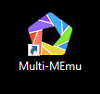
Click to open manager. |
| |
 |
| 2、 |
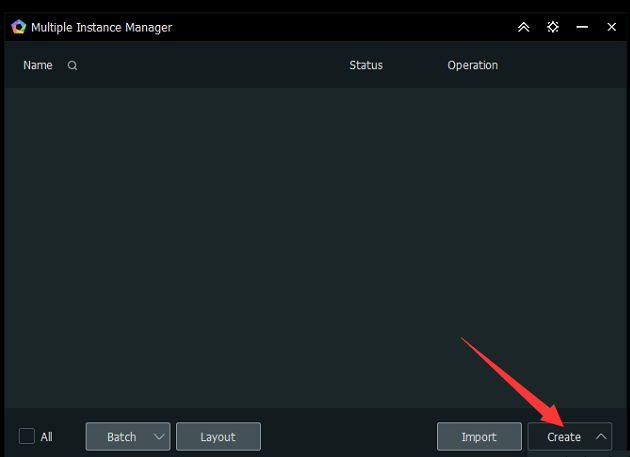
Click on New Simulation. |
| |
 |
| 3、 |
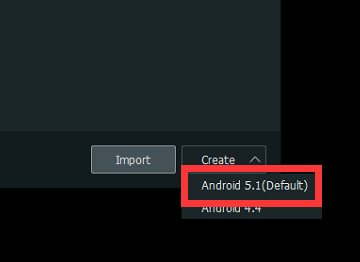
Click to create simulator first option. |
| |
 |
| 4、 |
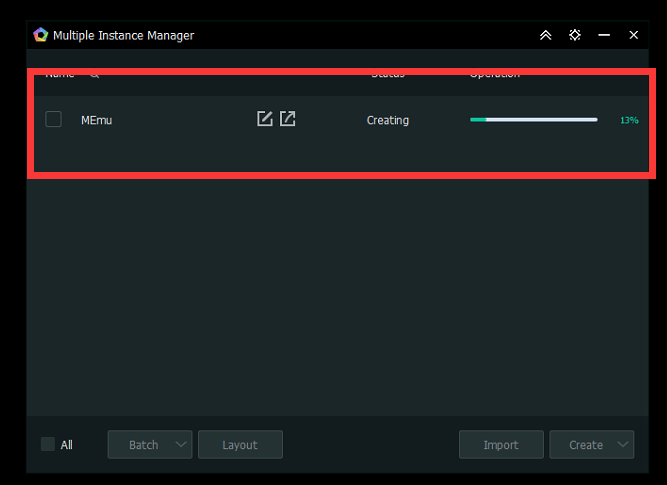
Wait for the creation to finish. |
| |
 |
| 5、 |
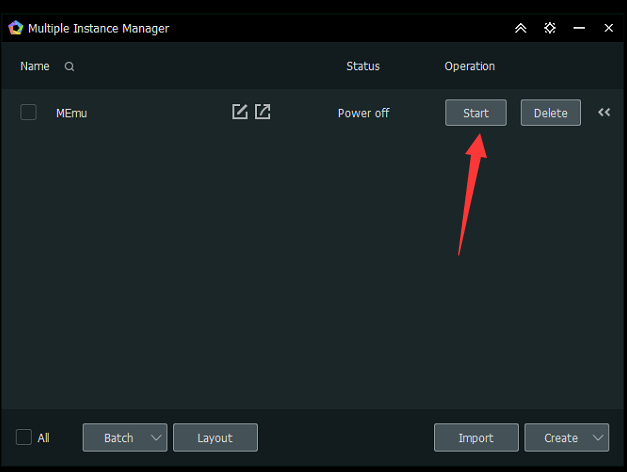
Click to start. |
| |
 |
| 6、 |
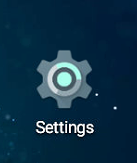
Click on Settings. |
| |
 |
| 7、 |
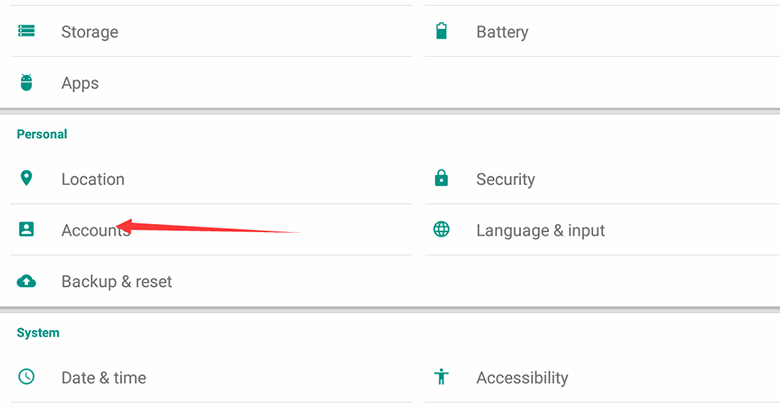
Add account. |
| |
 |
| 8、 |
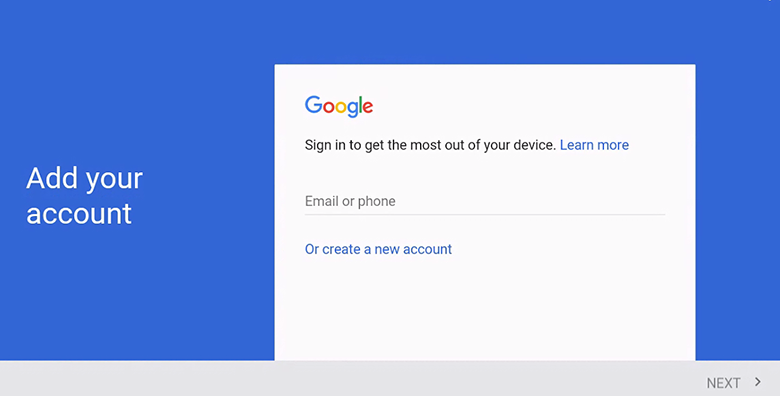
Click on an existing account to focus on Google. |
| |
 |
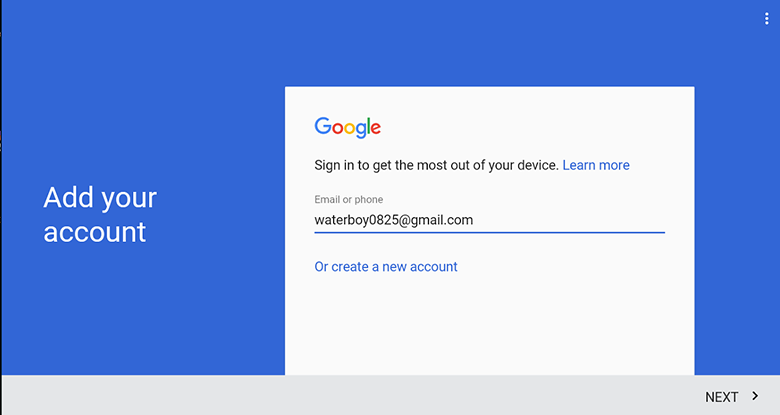
| 9、 |
Please fill in your Google account and password. |
| |
 |
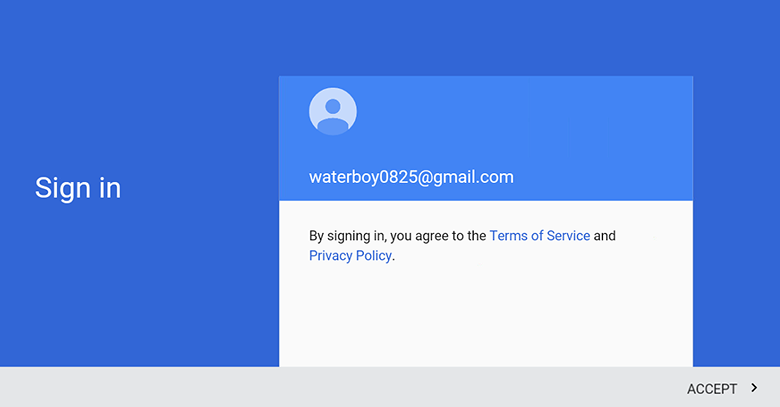
| 10、 |
Choose to accept. |
| |
 |
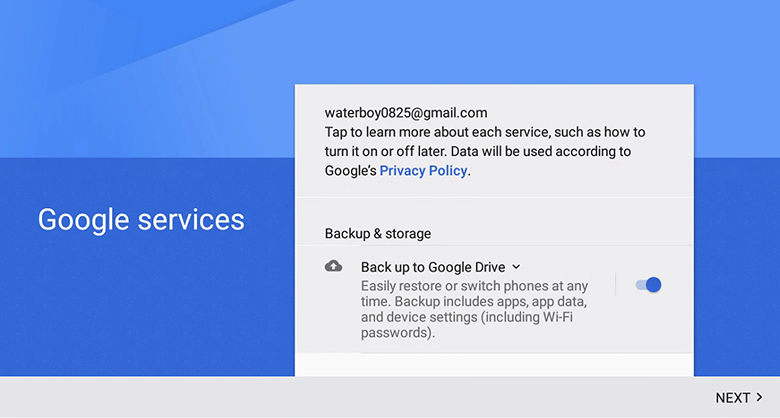
| 11、 |
Please click Next. |
| |
 |
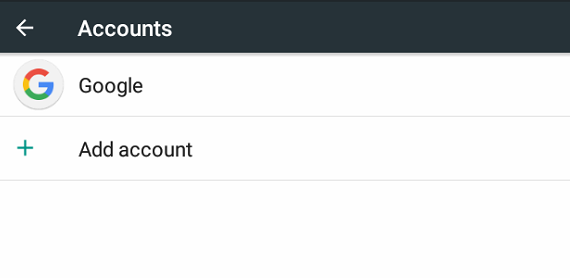
| 12、 |
Account setting completed. |
| |
 |
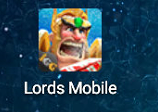
| 13、 |
Return to the mobile phone simulation desktop, click on the game execution. |
| |
 |
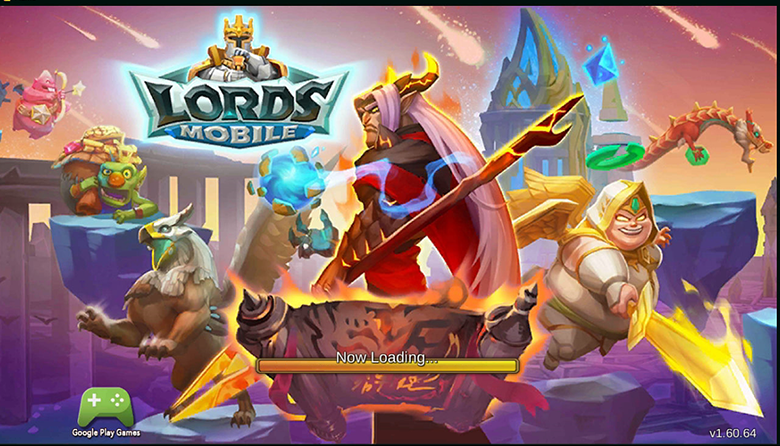
| 14、 |
Wait for the game to open. |
| |
 |
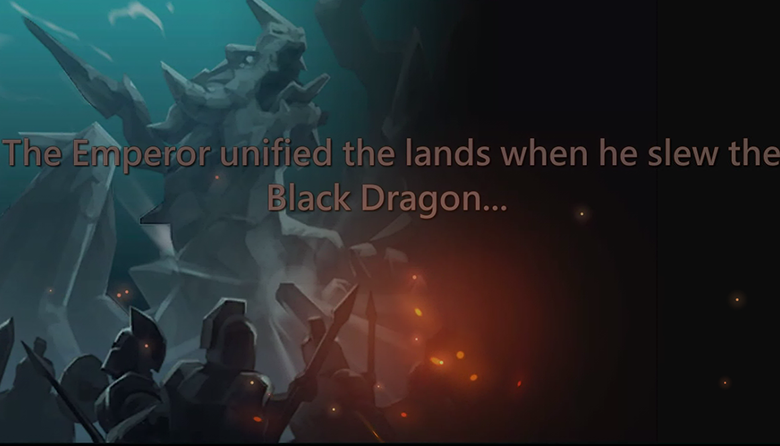
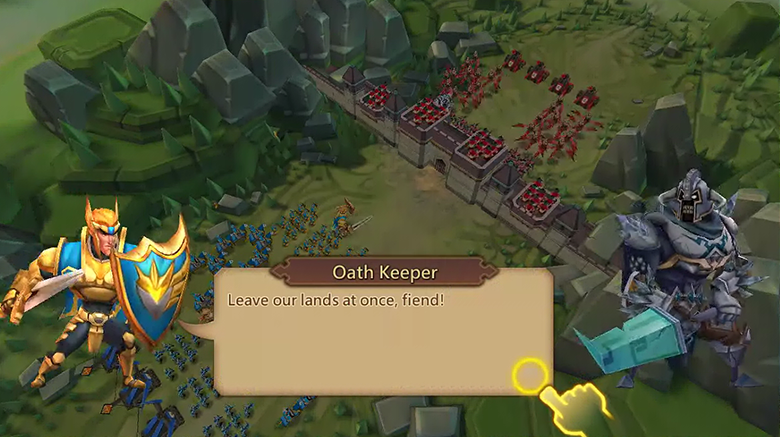
| 15、 |
Please trigger the task manually. |
| |
 |
| |
 |
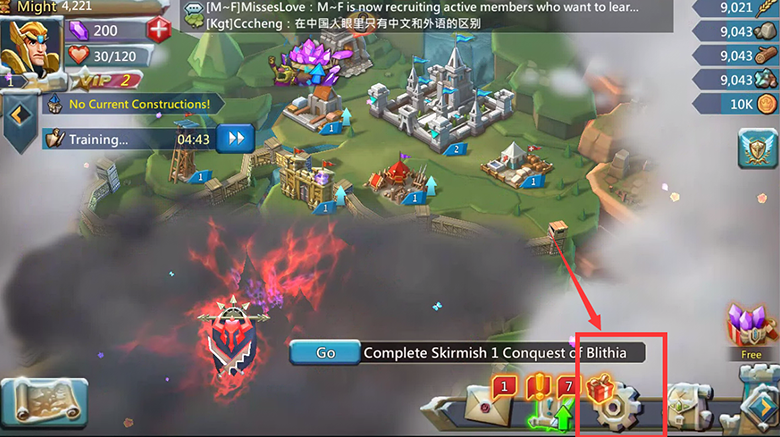
| 16、 |
Click on the lower right to enter the account settings. |
| |
 |
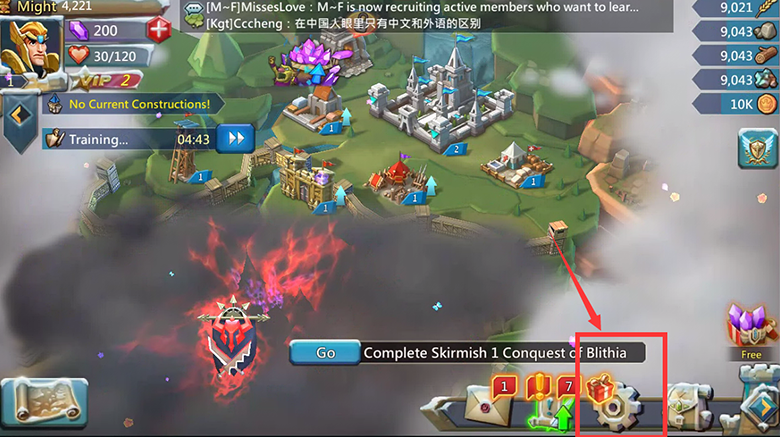
| 17、 |
Click on the account button. |
| |
 |
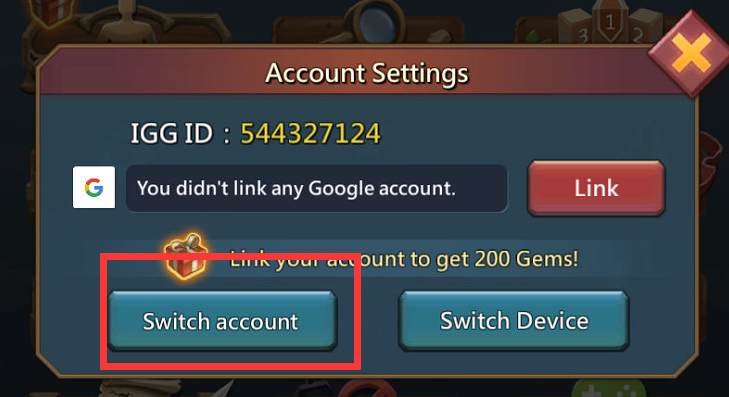
| 18、 |
Click to switch accounts. |
| |
 |
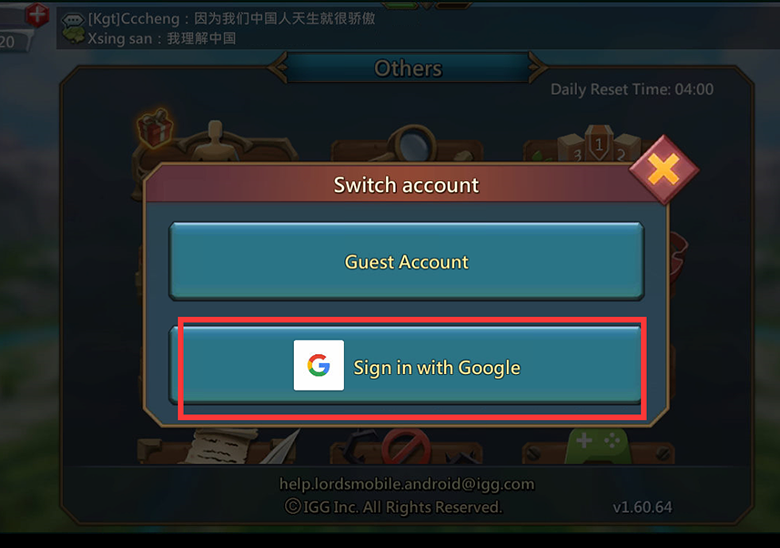
| 19、 |
Please choose to use the account, teaching based on Google. |
| |
 |
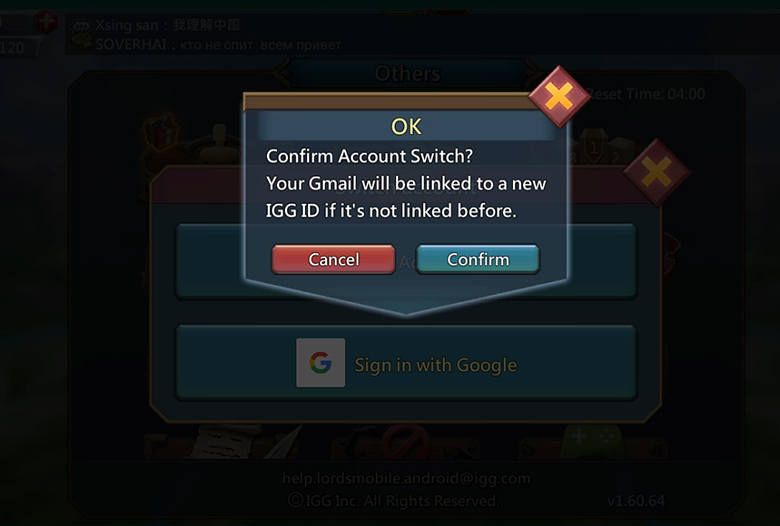
| 20、 |
Click confirm. |
| |
 |
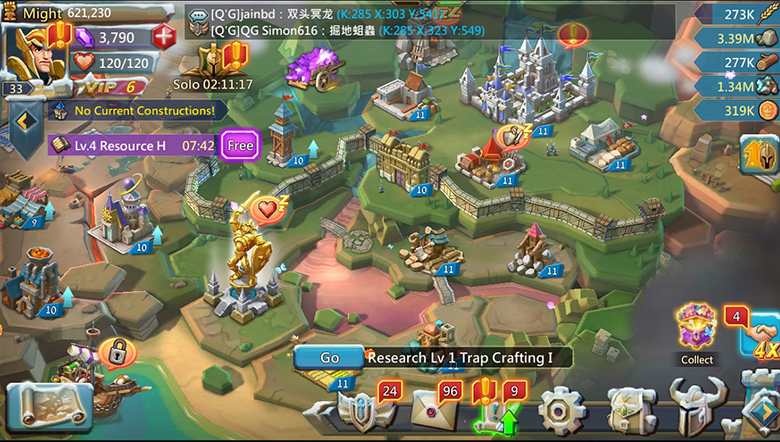
| 21、 |
Check account. |
| |
 |
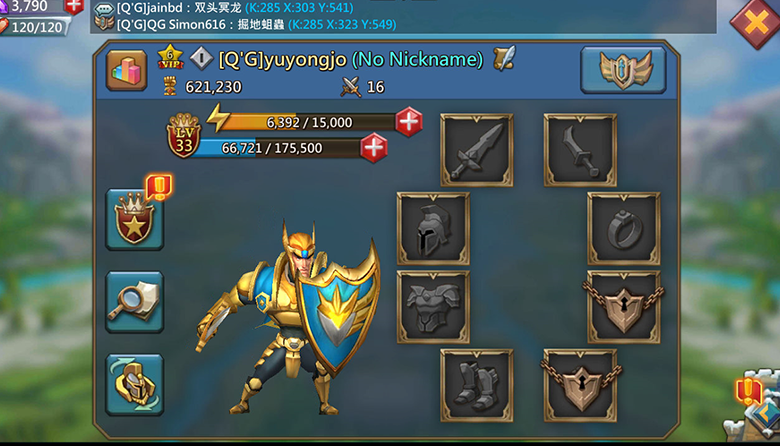
| 22、 |
Check if the account is correct. |
| |
 |
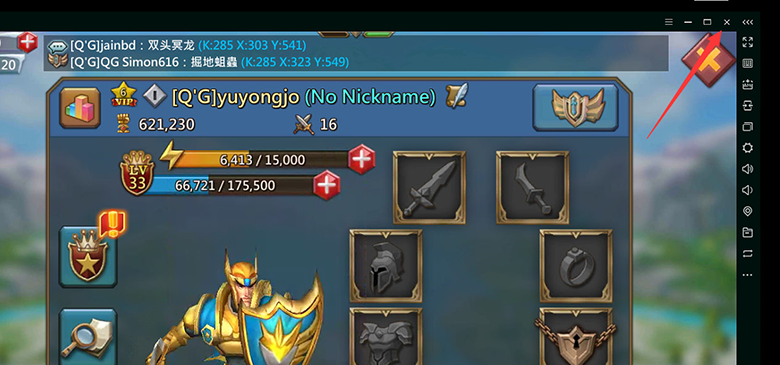
| 23、 |
Confirm account number, yes, please close the window. |
| |
 |
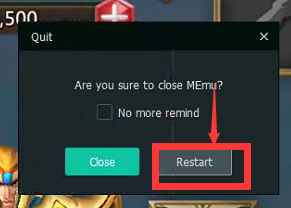
| 24、 |
Close the window and click Restart. |
| |
 |
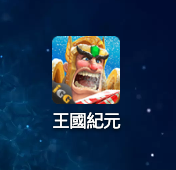
| 25、 |
Please click on the game execution. |
| |
 |
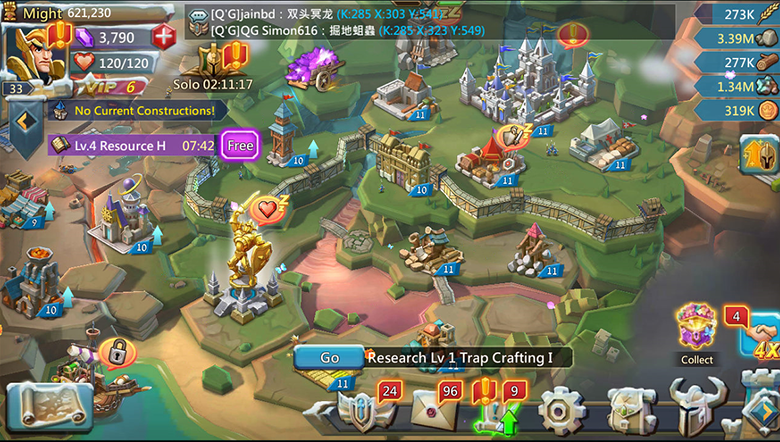
| 26、 |
Determine the account and close the game after OK. |
| |
 |
| |
|


